
FPS Test Online – Check Your FPS in Real Time
Measure rendering speed and frame rates with live FPS monitoring.
Performance Metrics
Average FPS is calculated from every frame. Minimum and Maximum FPS are the slowest and fastest one-second averages. 1% Low FPS is the average FPS of the slowest 1% of frames (shown once 100 frames have been measured), so it shows how smooth the worst moments feel. A stutter is a frame that took more than twice as long as normal (and over 20 ms). A browser can't show more frames than your screen's refresh rate, so the results here are capped by your display.
Performance Analysis
Device Comparison
Advanced Options
Test Your Frame Rate—No Downloads, Just Results
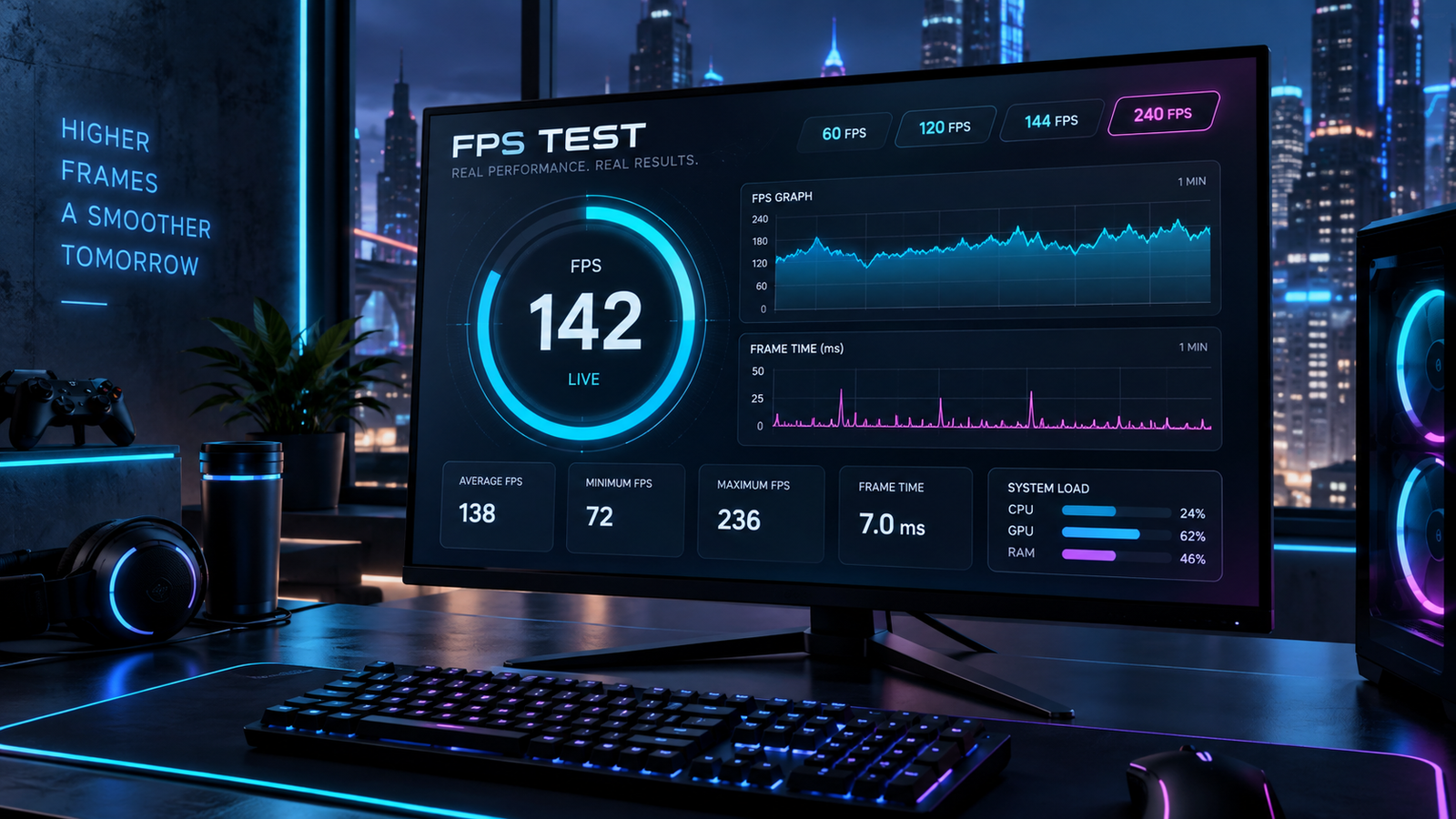
Use our free FPS test to measure your browser’s rendering performance in real time. The online FPS tester shows your current, average, minimum, and maximum FPS while helping you identify frame drops and unstable performance.
Looking for an FPS tester for PC or wondering, “How can I test my FPS?” Choose your test duration and complexity, then click Start FPS Test. No download or installation is required.
FPS Test Tool
Test Duration: 5 / 10 / 30 / 60 seconds / Infinite
Test Complexity: Low / Medium / High / Extreme
Performance Metrics
During the test, you can monitor:
- Current FPS
- Average FPS
- Minimum FPS
- Maximum FPS
- Frame Stability
For additional load testing, enable WebGL, particle effects, and post-processing from the Advanced Options.
How to Test FPS Online
Using the FPS checker is simple:
- Select a test duration.
- Choose the test complexity.
- Click Start FPS Test.
- Keep this browser tab active.
- Let the test run for at least 10–15 seconds.
- Check your average, minimum, maximum, and current FPS.
- Increase the complexity to see how performance changes under load.
For cleaner results, close unnecessary browser tabs and heavy applications before starting.
Test My FPS – How Does It Work?
If you searched for “test my FPS”, this tool gives you an instant browser-based way to check your current frame rate.
Once you start the test, the FPS counter measures how frequently your browser renders frames and displays the results in real time.
You can use the results to check:
- Current rendering speed
- Average FPS
- Minimum FPS
- Maximum FPS
- FPS stability
- Performance under additional load
Remember that this is a browser rendering test, so it does not predict the exact FPS you will get inside a specific PC game.
What Does This FPS Test Measure?
This online FPS test measures how smoothly your browser is rendering frames.
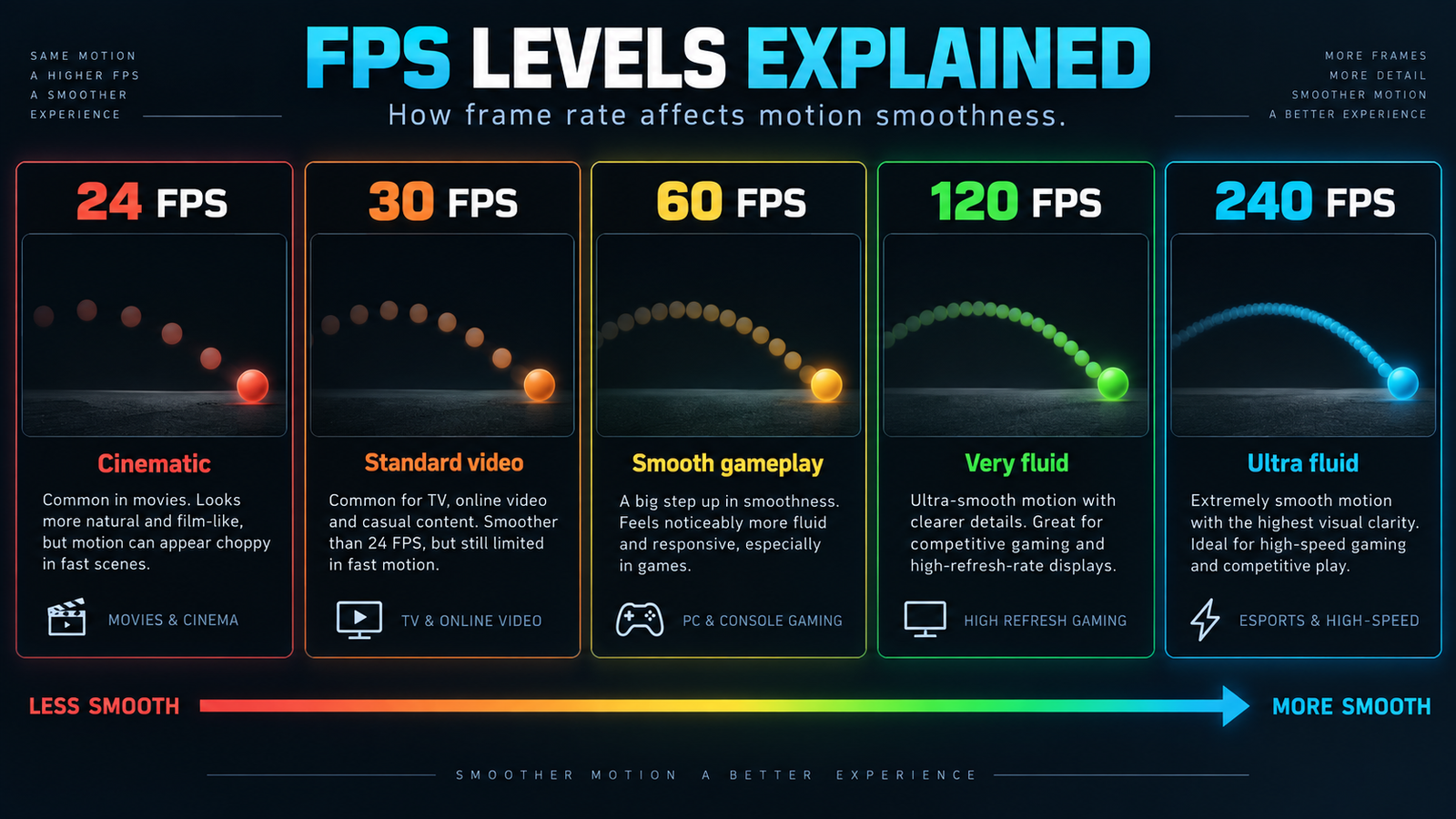
FPS stands for Frames Per Second. If your browser renders 60 frames during one second, the result is approximately 60 FPS.
Higher and more stable FPS generally produces smoother movement and animations.
Your result can be affected by:
- Monitor refresh rate
- GPU performance
- CPU load
- Browser hardware acceleration
- Background applications
- Browser extensions
- Power-saving settings
- Device temperature
FPS Checker – What Is a Good FPS?
| FPS | Performance | Typical Experience |
|---|---|---|
| Below 30 FPS | Low | Choppy movement |
| 30–59 FPS | Playable | Acceptable but less fluid |
| 60 FPS | Smooth | Good for most users |
| 90–120 FPS | Very Smooth | High-refresh displays and gaming |
| 144+ FPS | Excellent | Competitive gaming setups |
| 240+ FPS | Ultra Smooth | High-end high-refresh displays |
A high maximum FPS is useful, but stable FPS and consistent frame times are usually more important than occasional peaks.
FPS Drop Test
You can also use this tool as an FPS drop test.
Start with Low complexity and allow your normal FPS to stabilize. Then increase the test to Medium, High, or Extreme and compare the results.
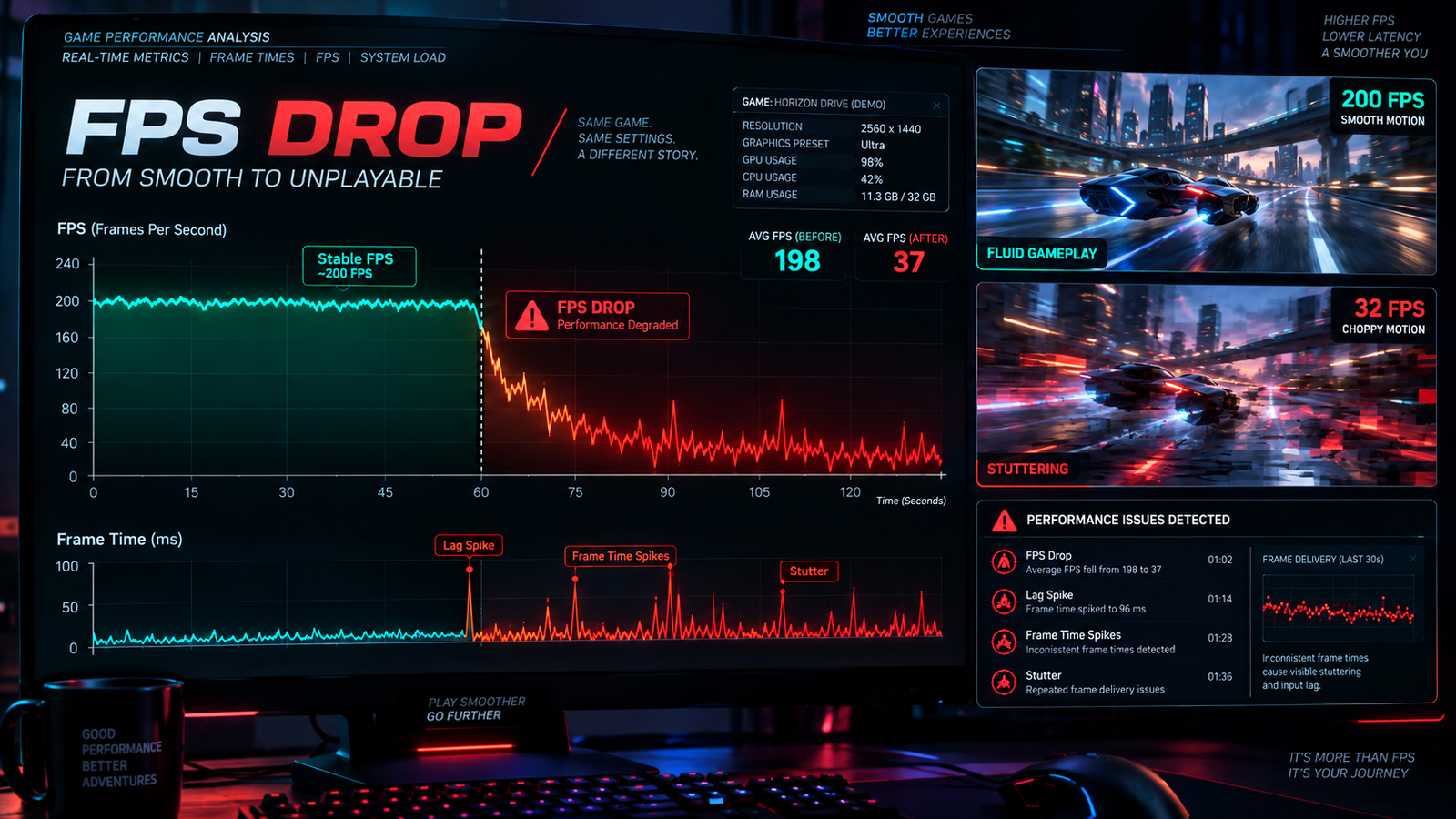
Watch these metrics carefully:
Average FPS
Your average frame rate throughout the test.
Minimum FPS
The lowest FPS recorded. Large drops may indicate temporary performance problems.
Maximum FPS
The highest frame rate reached during the test.
Frame Stability
Shows how consistently your device maintains its rendering performance.
If FPS falls sharply as complexity increases, your browser or device may be reaching a CPU, GPU, power, or thermal limit.
FPS Tester for PC
Our FPS tester for PC lets you check browser rendering performance without installing additional software.
You can use the tool on Windows PCs, gaming PCs, laptops, and other devices with a supported modern browser.
For a more consistent PC FPS test:
- Close unnecessary programs.
- Close unused browser tabs.
- Plug in your laptop.
- Disable battery-saving mode temporarily.
- Make sure hardware acceleration is enabled.
- Keep the FPS test tab active.
- Run the test more than once and compare the averages.
If your PC uses a high-refresh-rate monitor, you may see results above 60 FPS. Systems connected to 60 Hz displays will often remain close to 60 FPS during browser-based testing.
120 FPS Test
Use the 120 FPS test to see whether your browser and display can maintain rendering close to 120 frames per second.
A result around 120 FPS is most useful when you are using a 120 Hz or higher-refresh-rate display.
At 120 FPS, each frame lasts approximately:
8.3 milliseconds
For comparison:
- 60 FPS → approximately 16.7 ms per frame
- 120 FPS → approximately 8.3 ms per frame
- 144 FPS → approximately 6.9 ms per frame
- 240 FPS → approximately 4.2 ms per frame
If your result stays close to 60 FPS even though you expect 120 FPS, check your display refresh rate, browser settings, power mode, and hardware acceleration.
A 120 FPS test measures browser rendering performance. It does not guarantee that PC games will also run at 120 FPS.
Browser FPS vs Gaming FPS
Browser FPS and gaming FPS measure different workloads.
Browser FPS
A browser FPS test measures tasks such as:
- Canvas rendering
- WebGL graphics
- JavaScript animations
- CSS effects
- Particle effects
- Browser compositing
Gaming FPS
A modern PC game may need to render:
- 3D geometry
- Textures
- Lighting
- Shadows
- Physics
- AI
- Particle effects
- Post-processing
- Ray tracing
Getting 120 or 144 FPS in this browser test does not mean every game will run at the same frame rate.
Use this online FPS checker for browser and display smoothness. For exact gaming FPS, use a game’s built-in FPS counter or benchmark.
What Is Frame Time?
FPS tells you how many frames are rendered every second.
Frame time tells you how long each individual frame takes to render.
| FPS | Approximate Frame Time |
|---|---|
| 30 FPS | 33.3 ms |
| 60 FPS | 16.7 ms |
| 120 FPS | 8.3 ms |
| 144 FPS | 6.9 ms |
| 240 FPS | 4.2 ms |
Lower and more consistent frame times generally produce smoother motion.
These figures describe frame time, not total system input latency.
Why Is My FPS Dropping?
Sudden FPS drops can have several causes.
Too Many Background Applications
Other programs may use CPU, GPU, or memory resources.
Too Many Browser Tabs
Background tabs can consume memory and processing resources.
Hardware Acceleration Is Disabled
Modern browsers can use the GPU to accelerate supported graphics operations.
Battery-Saving Mode
Laptops and mobile devices may reduce CPU and GPU performance to save power.
High System Temperature
Excessive heat can cause the CPU or GPU to reduce performance.
Browser Extensions
Some extensions add scripts or other processing work to webpages.
If your results seem unusually low, compare them after closing unnecessary apps and tabs.
How to Improve FPS
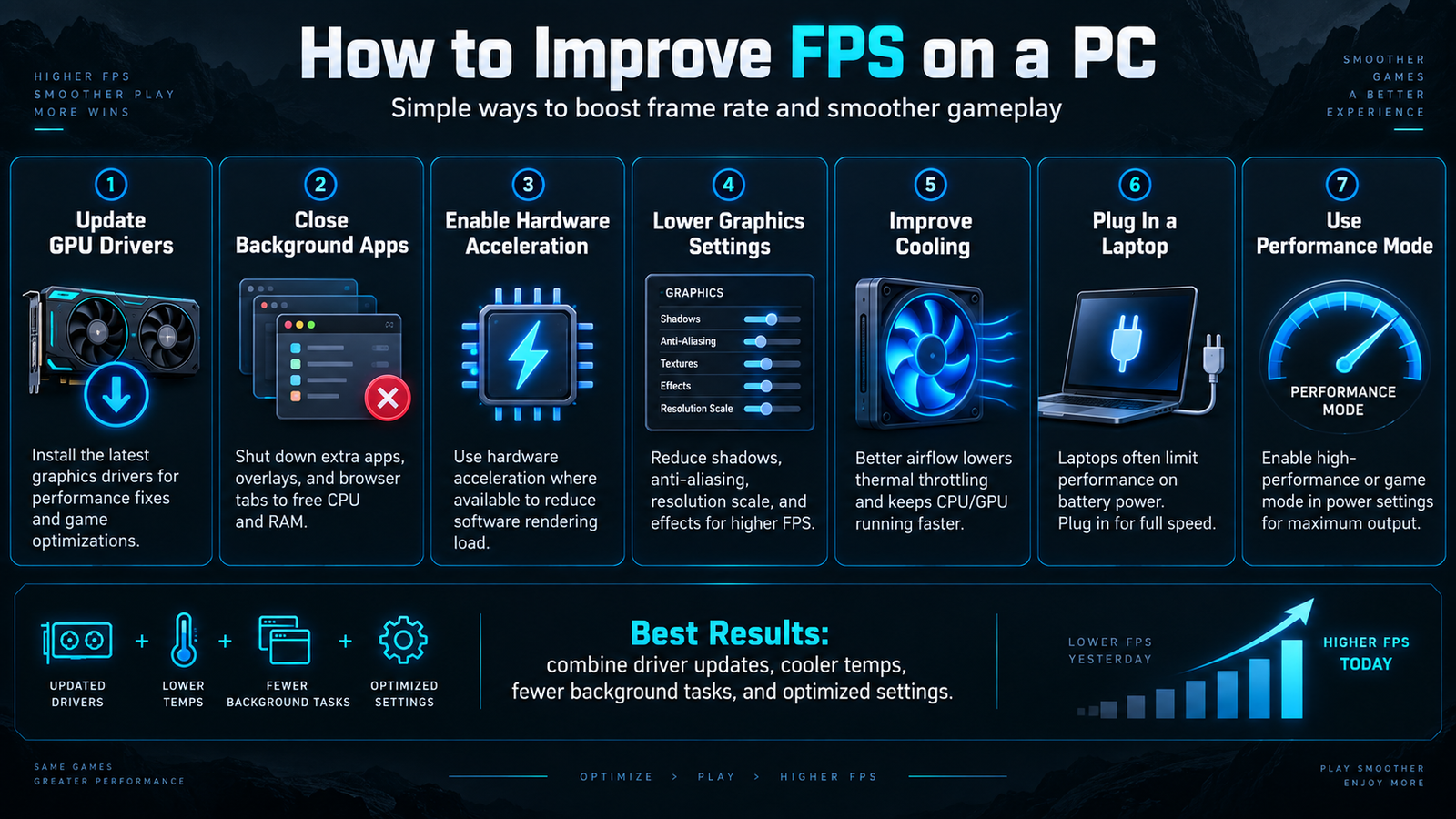
If your FPS is lower than expected:
- Close unused browser tabs.
- Close unnecessary applications.
- Enable browser hardware acceleration.
- Update your browser.
- Update appropriate graphics drivers.
- Connect your laptop to power.
- Use a performance-focused power mode.
- Check cooling and airflow.
- Reduce demanding visual settings in games or applications.
For supported games, technologies such as DLSS or FSR may also improve performance, although results vary by game, hardware, resolution, and settings.
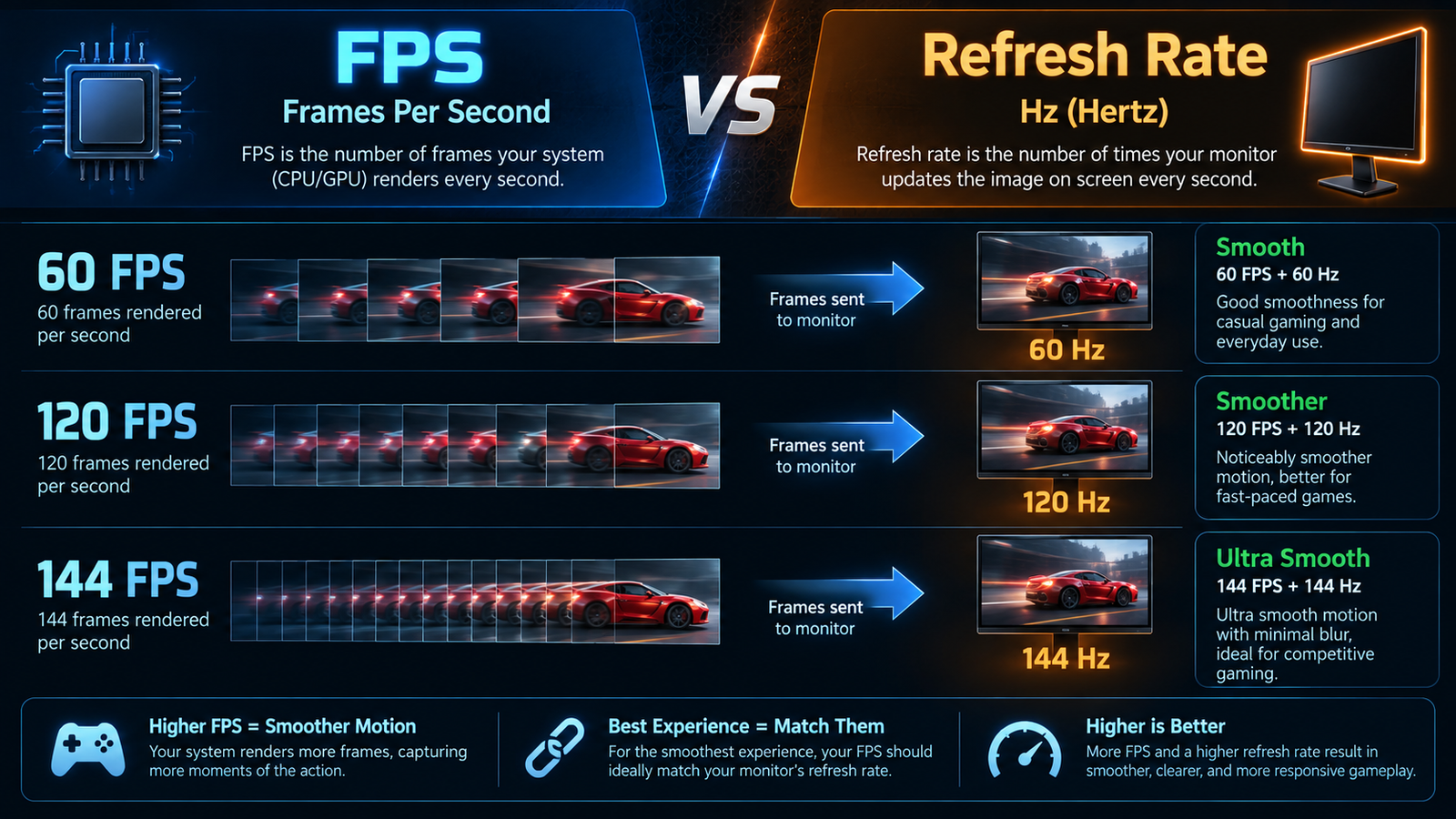
FPS vs Refresh Rate
FPS and refresh rate are related but measure different things. FPS measures how many frames an application produces every second.
Refresh rate, measured in Hz, describes how many times your display can refresh every second.
For example:
- 60 Hz → 60 display refreshes per second
- 120 Hz → 120 refreshes per second
- 144 Hz → 144 refreshes per second
- 240 Hz → 240 refreshes per second
Want to check your monitor instead? Use our Refresh Rate Test to check your display Hz.
Does Matching FPS and Hz Prevent Screen Tearing?
Not necessarily.
Screen tearing can occur when frame delivery and display refreshes are not properly synchronized.
Technologies such as VSync, G-SYNC, FreeSync, and other variable refresh rate systems help coordinate frame delivery and monitor refresh behavior.
60 FPS vs 120 FPS
At 60 FPS, each frame takes approximately 16.7 ms.
At 120 FPS, each frame takes approximately 8.3 ms.
The higher frame rate can make motion appear smoother when used with a display capable of refreshing above 60 Hz.
If you specifically want to check whether your browser can reach the higher rate, run the 120 FPS test above.
120 FPS vs 144 FPS vs 240 FPS
As FPS increases, the time between frames decreases:
- 120 FPS → approximately 8.3 ms
- 144 FPS → approximately 6.9 ms
- 240 FPS → approximately 4.2 ms
Higher frame rates can improve motion smoothness, particularly in fast-moving content, but the visible benefit depends on your display and system.
Can I Use This as a Gaming FPS Test?
This tool can show whether your browser and basic graphics rendering are running smoothly.
However, it cannot determine exactly how many FPS your PC will produce in games such as Fortnite, Valorant, Counter-Strike 2, Minecraft, GTA, or Call of Duty.
Gaming performance depends on:
- GPU
- CPU
- Resolution
- Graphics settings
- Drivers
- Game engine
- Scene complexity
- Ray tracing
- Background processes
Use an in-game benchmark when you need game-specific FPS results.
Frequently Asked Questions
What is an FPS test?
An FPS test measures how many frames are being rendered per second. This tool measures browser rendering FPS in real time.
How can I test my FPS?
To test my FPS, simply click Start FPS Test above and let the tool run for at least 10–15 seconds. It will show your current, average, minimum, and maximum FPS.
Is there an FPS tester for PC?
Yes. This FPS tester for PC works directly in supported web browsers and does not require additional software installation.
Can I run a 120 FPS test?
Yes. Run the tool on a 120 Hz or higher-refresh-rate display and check whether your browser maintains a result close to 120 FPS.
Is this FPS tester free?
Yes. The online FPS tester is free to use.
What is a good FPS?
60 FPS is generally smooth for everyday use and many games. Higher frame rates such as 120 FPS, 144 FPS, or 240 FPS can provide smoother motion when paired with compatible displays.
Why is my FPS stuck at 60?
One common reason is that your display is running at 60 Hz and the browser is synchronizing rendering with the screen’s refresh cycle.
Why does my FPS drop during the test?
FPS can drop because of rendering load, background applications, CPU or GPU usage, power-saving settings, temperature, or browser configuration.
Can this tool detect FPS drops?
Yes. Compare your minimum and average FPS and increase the test complexity to see how performance changes under additional load.
Is FPS the same as Hz?
No. FPS is the number of frames produced per second, while Hz describes how many times your display can refresh per second.
Is 120 FPS better than 60 FPS?
120 FPS has a shorter frame interval and can produce smoother motion, particularly on a 120 Hz or higher-refresh-rate display.
Is 144 FPS good for gaming?
Yes. 144 FPS is a popular target for competitive gaming when paired with a compatible high-refresh-rate monitor.
Does higher FPS mean better graphics?
No. FPS measures rendering speed, while graphics quality depends on resolution, textures, lighting, shadows, and other visual settings.
Can an online FPS test show my exact gaming FPS?
No. Browser rendering and full 3D game rendering create different workloads. Use an in-game FPS counter or benchmark for exact gaming performance.
Test Your FPS Now
Use the FPS test tool above to check your current frame rate, compare average and minimum FPS, and see how stable your device remains under different rendering loads.
Whether you want to test my FPS, use an FPS tester for PC, perform an FPS drop test, or run a 120 FPS test, start with the Low setting, establish a baseline, and then increase complexity to see how your system responds.