
Refresh Rate Test Tool
Monitor Refresh Rate Test
Check your screen's actual Hz instantly — no download, no install required.
Run for at least 10 seconds for accurate results. For 144Hz+ monitors, 30 seconds gives the most precise reading.
What is Refresh Rate?
Your monitor's refresh rate is how many times per second the screen redraws the image. Higher Hz means smoother motion — especially noticeable in games and fast scrolling. Just because your monitor supports a high Hz doesn't mean it's running at that rate — this tool confirms your actual speed.
Monitor not running at full Hz?
Windows may default to 60Hz. Go to Display Settings → Advanced Display and set the correct refresh rate manually.
How to test 144Hz or 240Hz?
Run this test for 30+ seconds. Also confirm you're using the right cable — DisplayPort 1.4 or HDMI 2.1 for high Hz.
What is frame jitter?
Jitter is inconsistency between frames. Low jitter means smooth motion. High jitter causes stuttering even at high Hz.
Works on laptops too?
Yes — this tool works on any device with a browser. Many gaming laptops support 144Hz or higher. Run the test to confirm.
Refresh Rate Test – Check Your Monitor Hz Online Instantly
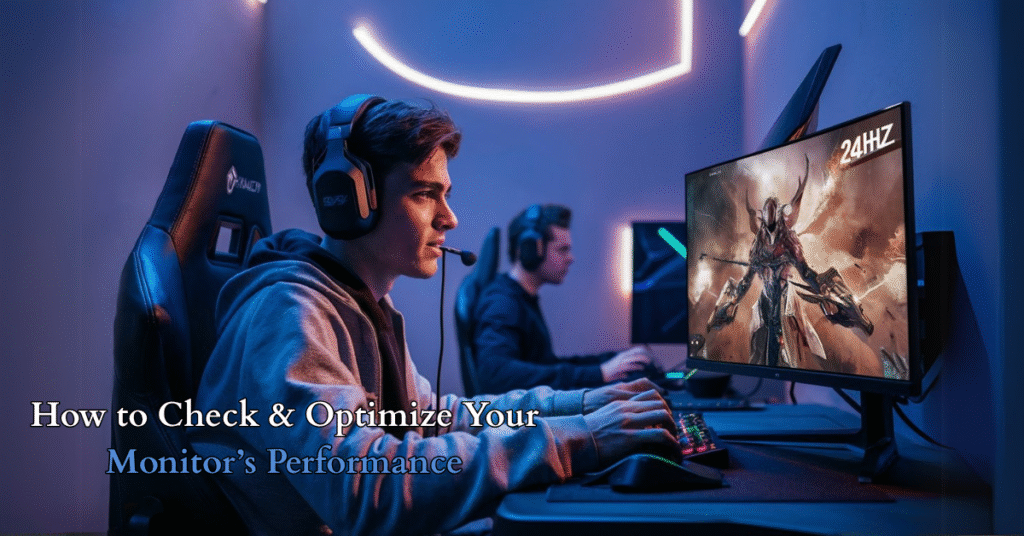
Why Refresh Rate Matters
Your display’s refresh rate (measured in Hz) determines how smoothly motion appears.
Whether gaming, editing videos, or browsing, a higher monitor refresh rate means:
✅ Smoother visuals
✅ Reduced motion blur
✅ Competitive edge in fast-paced games
How to Test Your Refresh Rate
1. Online Refresh Rate Test (Fastest Method)
Use tools like TestUFO or Blur Busters to:
- Check real-time Hz
- Detect frame skipping
- Compare 60Hz vs 120Hz vs 144Hz
2. System Settings (Windows & Mac)
Windows:
- Right-click Desktop → Display Settings → Advanced Display
- Select Display Adapter Properties → Monitor Tab
- Run a refresh rate test monitor to confirm Hz
Mac:
- Apple Menu → System Preferences → Displays
- Hold Option + Click Scaled to see available rates
✅ Pro Tip: Always set your monitor to max Hz (e.g., 144Hz) for optimal performance.
Refresh Rate vs. FPS: Key Differences
| Feature | Refresh Rate (Hz) | Frame Rate (FPS) |
|---|---|---|
| Governed By | Monitor hardware | GPU performance |
| Ideal Match | FPS = Hz (e.g., 144 FPS on 144Hz) | Higher FPS = smoother gameplay |
| Issue | Screen tearing (if FPS > Hz) | Stuttering (if FPS < Hz) |
Fix Tearing: Enable G-Sync/FreeSync in GPU settings.
Best Refresh Rate for Your Needs
| Use Case | Recommended Hz | Experience |
|---|---|---|
| Office/Casual Use | 60Hz-75Hz | Basic smoothness |
| Console Gaming (PS5/Xbox) | 120Hz | Balanced performance |
| Competitive Gaming | 144Hz-240Hz | Near-instant response |
| Pro Esports | 240Hz-360Hz | Zero motion blur |
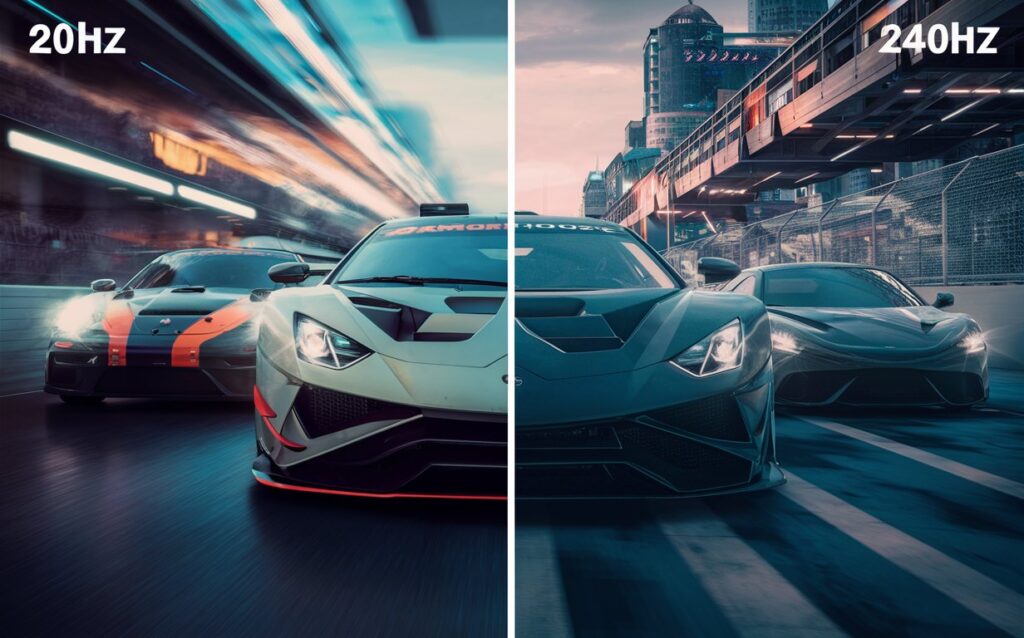
How to Increase Your Refresh Rate
- Enable Higher Hz:
- Windows: Display Settings → Advanced → Refresh Rate
- NVIDIA/AMD Control Panel: Force 120Hz/144Hz/240Hz
- Use the Right Cable:
- DisplayPort 1.4 (supports 144Hz-360Hz)
- HDMI 2.1 (for 120Hz on consoles)
- Upgrade Hardware:
- GPU: RTX 3060 (144Hz), RTX 4080 (240Hz+)
- Monitor: Check specs for max Hz (e.g., ASUS 360Hz)
Improve Overall Performance
After increasing your refresh rate, it’s a good idea to test other parts of your setup as well.
You can check your keyboard to make sure all keys are working properly and test mouse click speed to ensure fast and responsive input.
FAQs:
How do I know if my device is 165Hz or 240Hz?
Check your display settings or use an online refresh rate test to see your current Hz in real time.
How to check monitor refresh rate?
You can check your monitor refresh rate using display settings or an online refresh rate test tool.
Why is my monitor stuck at 60Hz?
This can happen due to incorrect settings, outdated drivers, or using the wrong cable.
Can I test refresh rate online?
Yes, a refresh rate test tool lets you check your screen Hz instantly in your browser.
How to change refresh rate on Windows?
Go to Display Settings → Advanced Display → Refresh Rate and select the highest available option.
Final Recommendation
- Gamers: 144Hz-240Hz monitors (e.g., LG UltraGear, ASUS ROG)
- Content Creators: 120Hz-144Hz for color accuracy + smoothness
- Budget Users: 75Hz (better than 60Hz)
Want to test your clicking speed? Try our CPS Test Tool and see how fast you can click!
Conclusion:
Your display’s refresh rate isn’t just a number, it’s the difference between choppy visuals and buttery-smooth performance. Whether you’re a gamer, content creator, or everyday user, understanding and optimizing your monitor’s Hz can completely transform your experience.
✅ Gamers: Higher refresh rates (144Hz/240Hz) mean faster reactions and smoother gameplay, critical for competitive titles like Valorant or Fortnite.
✅ Creators: A 120Hz+ display reduces eye strain during long editing sessions.
✅ Casual Users: Even 75Hz feels noticeably better than a standard 60Hz for scrolling and videos.
Want to see how your screen performs? Use a refresh rate checker or screen refresh rate test to find out your current display’s capability. You can also test monitor refresh rate online using a refresh rate tester perfect for ensuring you’re getting the smooth visuals you paid for. For the most accurate results, try running a full monitor refresh rate test alongside your FPS tests to optimize both frame rate and display performance.
Ready to Test Yours?
- Use our step-by-step guide to check your current refresh rate.
- Compare results with your needs (gaming? office work?).
- Upgrade your setup if needed, your eyes will thank you!
Now that you’ve tested your Hz (need a quick check?), upgrade your setup if needed. Share your results in comments!