In the world of fast-paced FPS (First-Person Shooter) games, a fraction of a second is the difference between a “Victory” and a “Game Over.” Imagine you’re on the battlefield, an enemy pops up, and you click to fire. But because your sensitivity is poorly calibrated, your aim overshoots or lags behind, hitting the ground instead of the target.
In those few milliseconds, the enemy reacts and takes you out. This is why sensitivity matters. It’s not just about how fast your mouse moves; it’s about the precision, muscle memory, and the synchronization between your hand and the screen. Proper calibration ensures your gameplay is “handsome” (smooth), fast, and consistent, without putting unnecessary strain on your hardware or your focus.
The Technical Core: Understanding DPI vs. eDPI
Before diving into settings, let’s break down the technical jargon that often confuses new players.
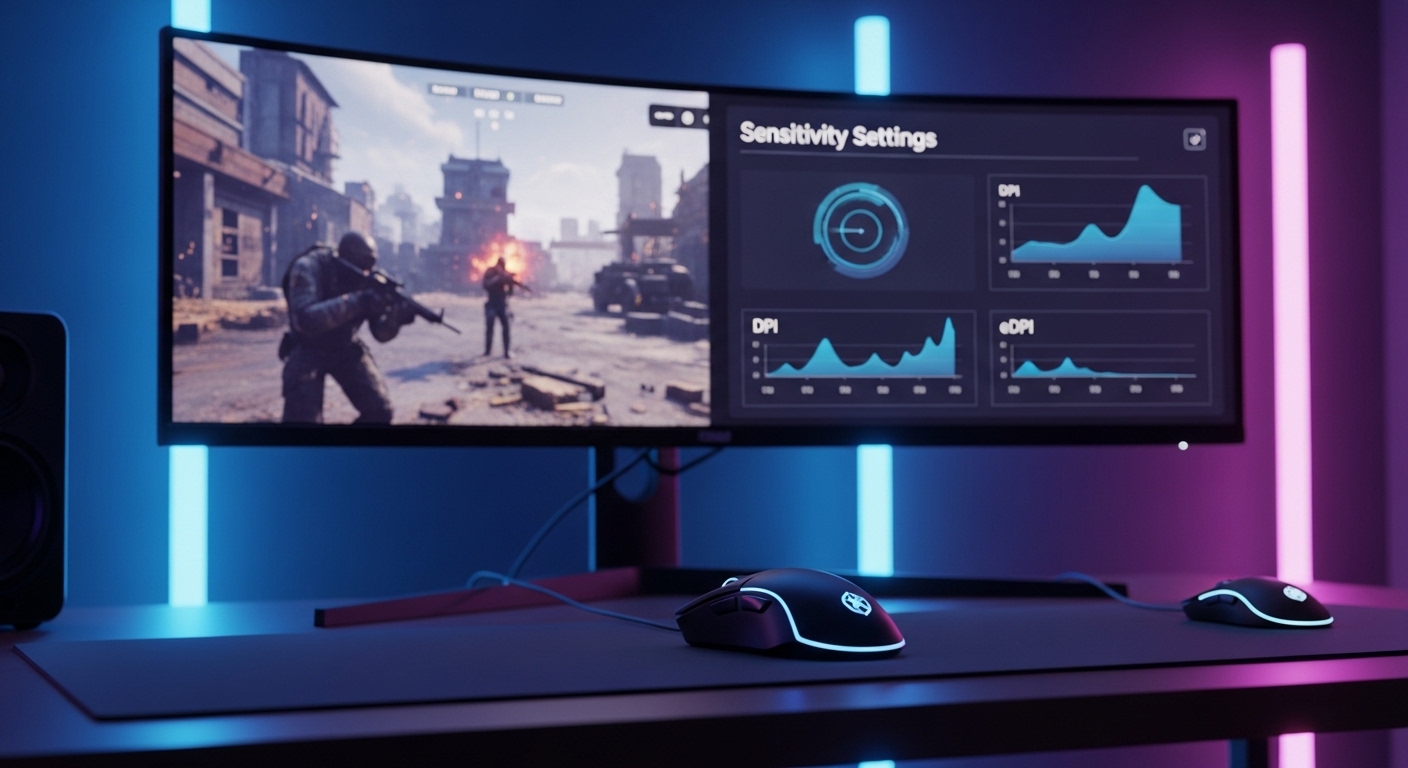
- DPI (Dots Per Inch): This is a hardware setting for your mouse. It measures how many pixels your cursor moves on the screen for every inch you move the physical mouse. High DPI isn’t always better; it just makes the cursor move further with less effort.
- In-Game Sensitivity: This is the multiplier within the game’s settings that scales your mouse movement.
- eDPI (Effective Dots Per Inch): This is the “true” sensitivity. It’s calculated by multiplying your DPI × In-Game Sensitivity. Using eDPI is the only way to accurately compare your speed with other players, regardless of what mouse they use.
Pro Tip: Don’t let these terms intimidate you. Once you find your “sweet spot,” these numbers just become a baseline to help you stay consistent across different games.
Key Strategies to Optimize Your Aim
To get the most out of your hardware (mouse or controller), follow these essential optimization tips:
- Disable Mouse Acceleration: Always turn off “Enhance Pointer Precision” in Windows. You want your mouse movement to be 1:1, not speed-dependent.
- Standardize Your eDPI: Try to keep your “feel” consistent across all games so you don’t ruin your muscle memory.
- Start Low (400–800 DPI): Most pros prefer a lower DPI because it allows for micro-adjustments and better precision.
- Practice with Aim Trainers: Use software like Aim Lab or Kovaak’s to refine your flicks and tracking.
- Maintain Your Gear: A dirty mouse sensor or a worn-out mousepad can cause “jitter,” making even the best settings feel laggy.
What the Pros Use: Finding the Ideal Balance
Most professional players don’t use ultra-high sensitivity. Instead, they opt for a Low-to-Medium range. This makes the aim more stable and reduces “input noise.” Interestingly, your settings are also tied to your hardware; a high-refresh-rate monitor (144Hz+) and a powerful GPU make high-speed tracking feel much smoother.
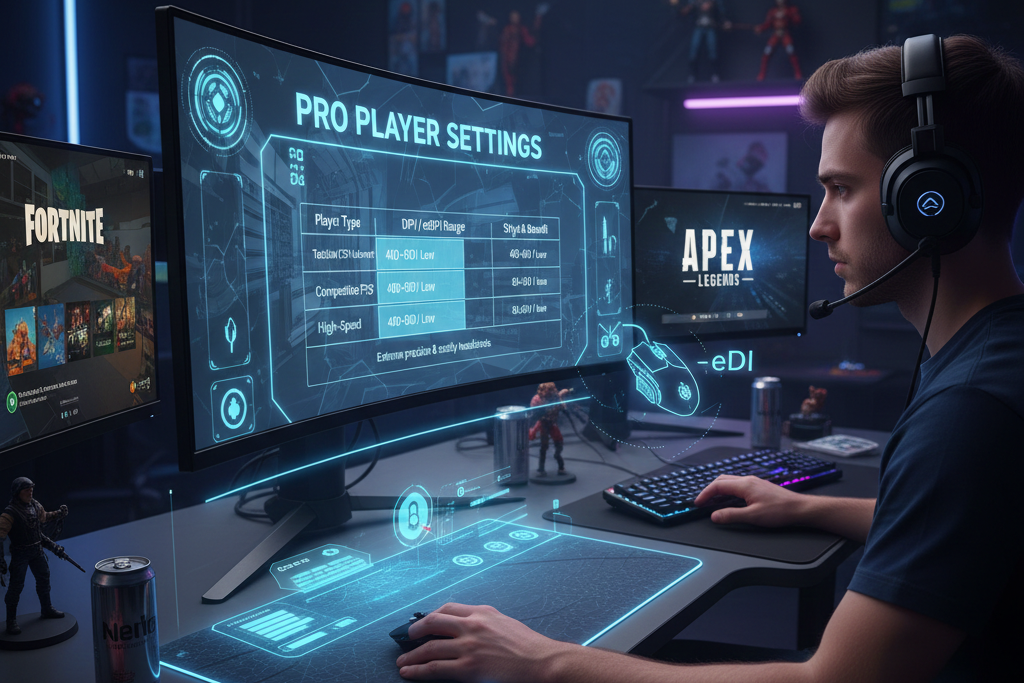
| Player Type | DPI Range | eDPI Range | Style & Benefit |
| Tactical (CS/Valorant) | 400–600 | Low | Extreme precision & steady headshots |
| Competitive FPS | 800 | Medium | Balanced for speed and accuracy |
| High-Speed (Apex/Quake) | 1000+ | High | Fast 180° turns and vertical tracking |
| Casual Player | 800–1200 | Medium | Easy to control, less arm movement |
Converting Sensitivity: The “Universal” Approach
One of the biggest headaches for gamers is switching from Call of Duty to Apex Legends or Fortnite and feeling like their aim is “broken.” While you can manually adjust settings every time, it is much better to find a Universal Sensitivity.
Using a universal setting helps your brain “lock in” muscle memory. If you use the same eDPI across all titles, you won’t have to “re-learn” how to aim every time you switch games. This also keeps your system running efficiently, as you aren’t constantly fighting against your own controls, leading to a more relaxed and “neat” gaming session.
A Beginner’s Guide to Saving Profiles
If you are new to gaming, don’t worry about making a mess of your settings. Most modern gaming mice (Logitech, Razer, SteelSeries) come with software that allows you to create sensitivity profiles.
- Auto-Switching: You can set a profile that automatically activates when you launch a specific game.
- Cloud Backups: Save your settings to the cloud so if you reinstall Windows or move to a new PC, your aim stays the same.
- Manual Logs: It’s always a good idea to write down your DPI and in-game multiplier in a notepad or on your phone as a backup.
Avoid changing your settings every hour. Constant changes lead to frustration and can even make you feel like your system is “lagging” when it’s actually just your lack of consistency.
Conclusion:
If you want to play like a pro without system lag or “aim-choke,” calibration is your best friend. Start by measuring your current performance; check your FPS using our Tools Page in the header. Once you know your system’s limits, calibrate your mouse and controller to match.
By aligning your physical movements with your digital settings, you’ll find that your computer runs more efficiently, your aim becomes “awesome,” and your K/D ratio will thank you.