What Is a Monitor Refresh Rate?
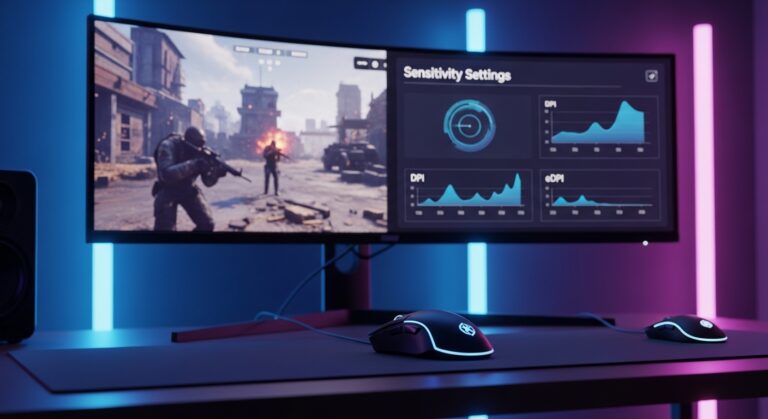
Your monitor’s refresh rate, measured in Hz (Hertz), tells you how many times per second your screen updates the image. A 60Hz monitor refreshes 60 times per second, while a 144Hz or 240Hz monitor refreshes much faster, giving you smoother visuals, especially in games.
If you’ve ever wondered, “What is my refresh rate?” or “What is my Hz?” this guide will show you exactly how to check it.
How to Test Your Monitor’s Refresh Rate
Method 1: Use an Online Refresh Rate Tester (Fastest Way)
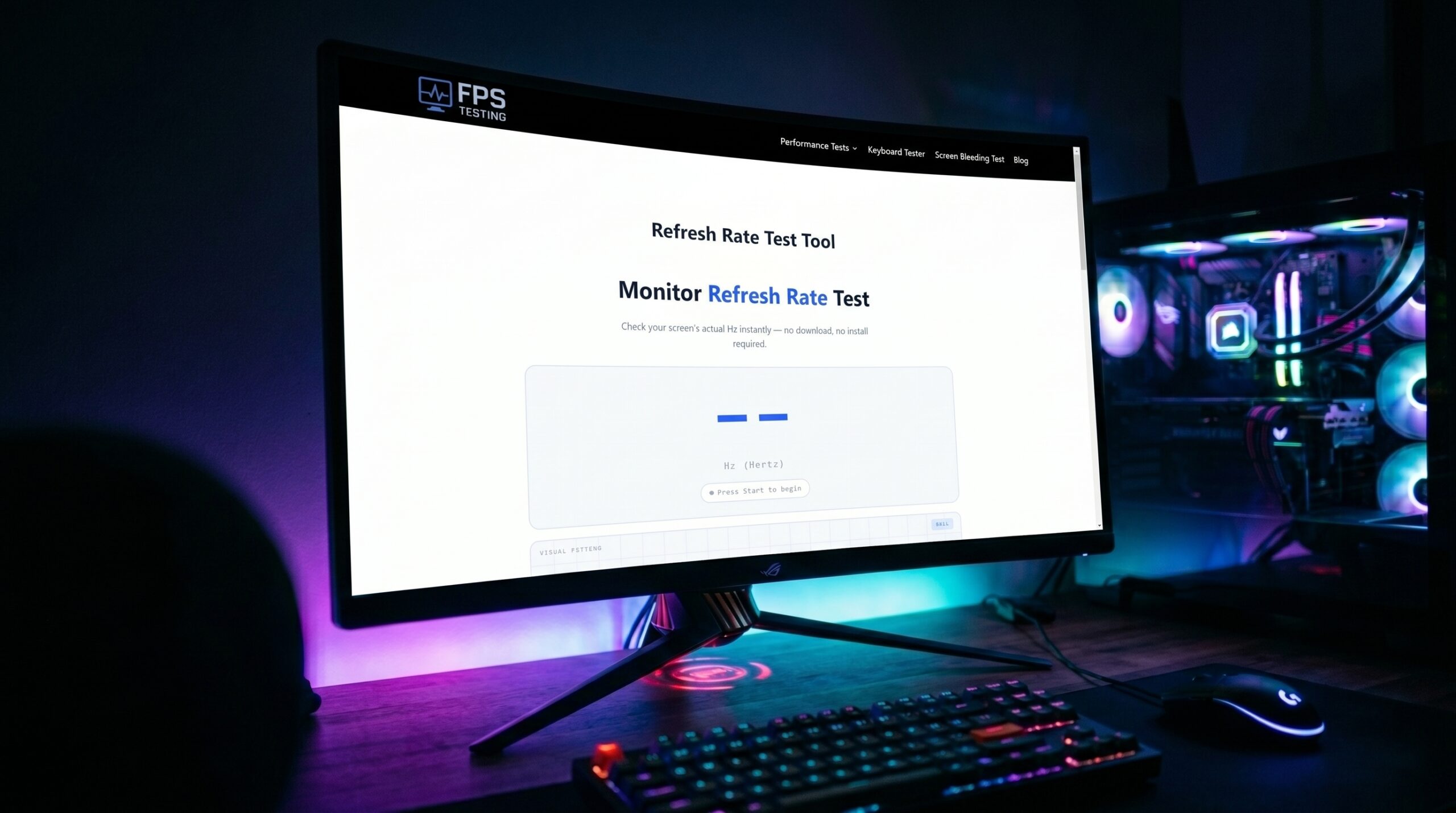
The easiest way to check your refresh rate is with an online tool. A refresh rate tester shows you your actual running Hz in real time — no software installation needed.
👉 Click here to test your refresh rate now
This works for all monitors — whether you have a 144Hz, 180Hz, 200Hz, or 240Hz screen.
Method 2: Check via Windows Settings
- Right-click on your Desktop → Display Settings
- Scroll down → click Advanced Display Settings
- You’ll see your current Refresh Rate listed (e.g., 144Hz, 60Hz)
Note: Windows might show your monitor’s maximum supported rate, not the actual running rate. Use an online tester to confirm the real value.
Method 3: Check via NVIDIA / AMD Control Panel
- NVIDIA: Open NVIDIA Control Panel → Change Resolution → Check the refresh rate dropdown
- AMD: Open AMD Radeon Software → Display tab → Check refresh rate
How to Know If Your Monitor Is Running at 240Hz (or 144Hz)
Many users ask, “How do I check if my monitor is actually running at 240Hz?”
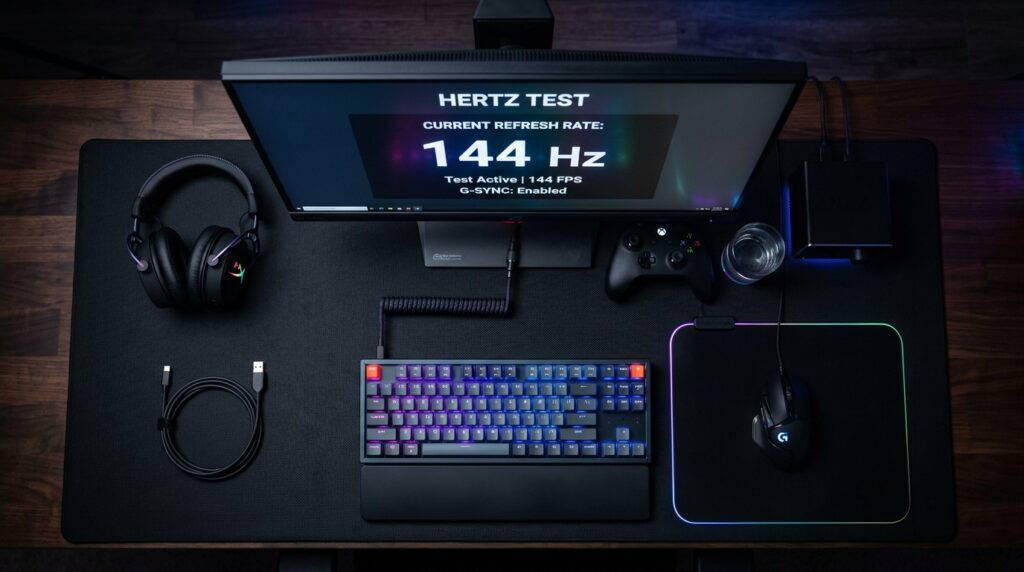
Here’s the thing — just because your monitor supports 240Hz doesn’t mean it’s running at 240Hz. Your PC also needs:
- A powerful enough GPU
- The correct cable (DisplayPort 1.4 or HDMI 2.1)
- The refresh rate set correctly in Windows settings
Use our online Hz checker to confirm your actual running refresh rate.
How to Check Hz on a Laptop
Laptop displays also have refresh rates — many gaming laptops now come with 144Hz or even 240Hz screens.
To check your laptop’s Hz:
- Go to Settings → System → Display → Advanced Display
- Or use our online refresh rate test; it works perfectly on laptops too
FAQs
Q: What is my refresh rate right now? Use our online tester — it detects your current Hz automatically.
Q: How do I test if my monitor can do 240Hz?
Set the refresh rate to 240Hz in Windows Display Settings, then run our tester to confirm it’s actually running at that speed.
Q: I can’t notice the difference between 100Hz and 180Hz. Is my monitor actually running at 180Hz?
This is a common concern! Some people can’t visually notice the difference, but that doesn’t mean it’s not working. Use an Hz checker tool to verify with data, not just perception.
Q: What does Hz feel like?
Higher Hz = smoother motion. The jump from 60Hz to 144Hz is very noticeable. From 144Hz to 240Hz is subtle but still real in fast-paced games.
Final Verdict: Check Your Refresh Rate in Seconds
Whether you have a 144Hz, 180Hz, 200Hz, or 240Hz monitor or you just want to know your current screen frequency, the fastest method is a dedicated online tester.